Notion for Personal Finance: Build Your Own Money Dashboard
A step-by-step tutorial to build a comprehensive personal finance dashboard in Notion — with budget tracking, net worth monitoring, subscription management, and financial goal visualization.
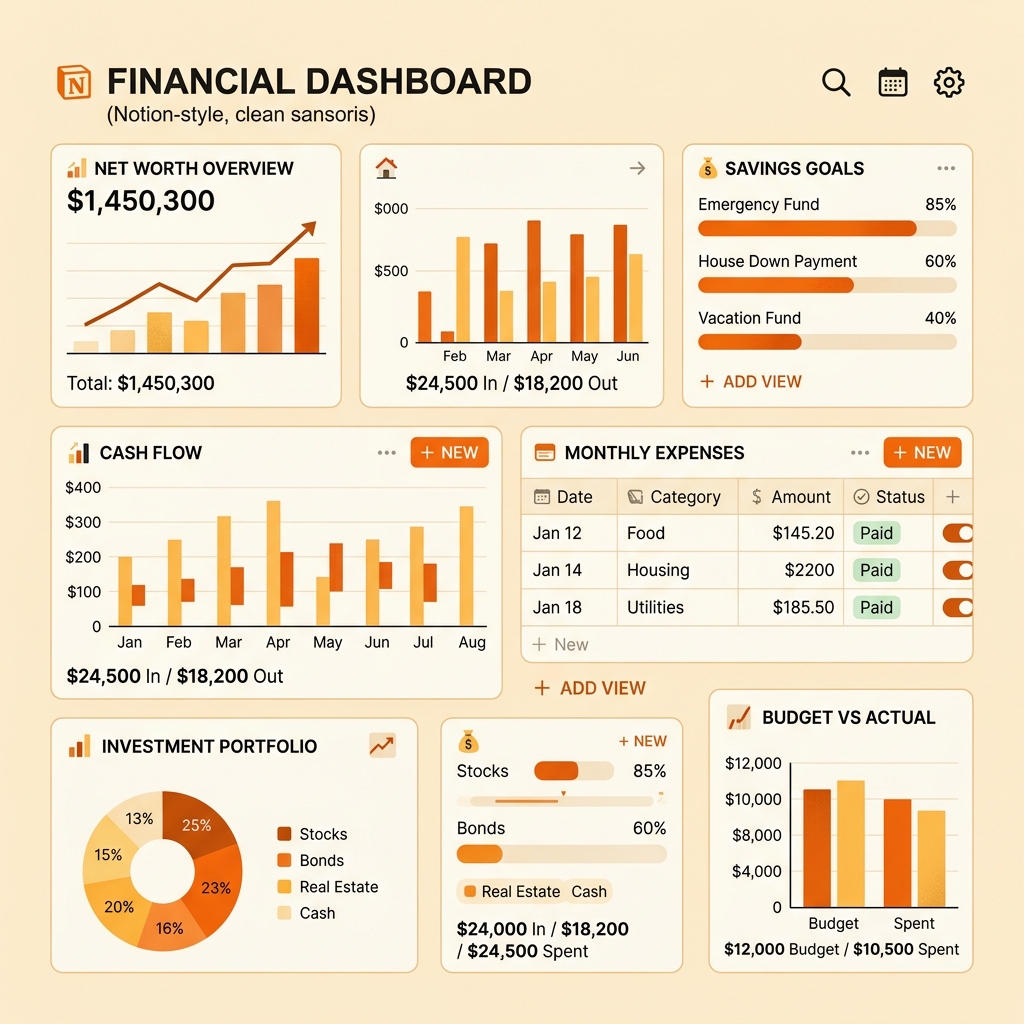
Notion is the Swiss Army knife of productivity apps. But most people use it for task lists and notes, completely overlooking its potential as a powerful personal finance hub. After six months of building and refining my own Notion finance dashboard, I have a single page that shows me my net worth, monthly budget status, active subscriptions, and financial goals — all in one glance. Here’s exactly how to build it.
Why Use Notion for Finance?
Before diving in, a fair question: why not just use a dedicated budgeting app? Three reasons:
-
Full customization: No budgeting app layouts exactly match how you think about money. Notion lets you build the exact views, calculations, and visualizations that make sense for your brain.
-
Centralization: Your finances live alongside your other life management tools — projects, goals, habits, journal. Switching between 4 apps creates friction; one dashboard eliminates it.
-
Free tier is genuinely sufficient: Notion’s free plan includes unlimited pages, databases, and blocks. Every feature we’ll use here works without paying.
That said, Notion is not a replacement for automatic transaction tracking. It’s a strategic planning and review tool. Pair it with an auto-tracker like Walnut for data capture.
Step 1: The Net Worth Tracker
Create a database called “Net Worth” with these properties:
| Property | Type | Purpose |
|---|---|---|
| Date | Date | When you measured |
| Savings Account | Number | Balance snapshot |
| FD/RD | Number | Fixed deposit balance |
| Mutual Funds | Number | Portfolio value |
| PPF | Number | Current balance |
| Other Investments | Number | NPS, gold, crypto, etc. |
| Total Assets | Formula | Sum of all above |
| Credit Card Debt | Number | Outstanding balance |
| Loans | Number | Remaining principal |
| Total Liabilities | Formula | Sum of debts |
| Net Worth | Formula | Total Assets - Total Liabilities |
Update frequency: Once a month, on the 1st. It takes about 5 minutes to open each account app, note the balance, and enter it. The formula columns auto-calculate everything.
Visualization: Switch to Chart view (Notion’s built-in charts) and create a line chart of Net Worth over Date. Watching this line trend upward month over month is arguably the most motivating financial habit you can build.
Step 2: Monthly Budget Database
Create a database called “Monthly Budgets” with:
| Property | Type | Purpose |
|---|---|---|
| Month | Title | ”April 2026” |
| Income | Number | Total take-home |
| Rent | Number | Actual rent paid |
| Groceries | Number | Actual grocery spend |
| Transport | Number | Actual transport spend |
| Dining Out | Number | Actual dining spend |
| Subscriptions | Number | Total subscription cost |
| Entertainment | Number | Movies, games, hobbies |
| Shopping | Number | Clothes, electronics, etc. |
| Savings Added | Number | Amount saved this month |
| Total Spent | Formula | Sum of all expense categories |
| Savings Rate | Formula | (Income - Total Spent) / Income * 100 |
| Status | Select | Under/On/Over budget |
Add additional category columns based on your spending patterns. The beauty of Notion is you can add or remove categories any time without breaking your system.
Key formula: The Savings Rate formula gives you a single, powerful number to track month over month. Anything above 20% is excellent.
Step 3: Subscription Manager
This alone makes the Notion dashboard worth building. Create a “Subscriptions” database:
| Property | Type | Purpose |
|---|---|---|
| Service | Title | Netflix, Spotify, etc. |
| Monthly Cost | Number | Convert annual to monthly if needed |
| Billing Cycle | Select | Monthly/Quarterly/Annual |
| Next Payment | Date | When the next charge hits |
| Payment Method | Select | Which card or UPI |
| Category | Select | Entertainment/Productivity/Health |
| Still Using? | Checkbox | Quarterly audit flag |
| Annual Cost | Formula | Monthly Cost × 12 |
| Notes | Text | Login details, family sharing info |
The audit trick: Every quarter, sort by “Still Using?” and uncheck everything. Then go through your list and only re-check services you’ve actively used in the past 30 days. Anything left unchecked is a cancellation candidate.
Most people discover 2-3 forgotten subscriptions worth ₹1,000-3,000 per month during their first audit. That’s ₹12,000-36,000 per year recovered.
Step 4: Financial Goals Board
Create a “Financial Goals” database:
| Property | Type | Purpose |
|---|---|---|
| Goal | Title | ”Emergency Fund”, “Japan Trip” |
| Target Amount | Number | How much you need |
| Current Amount | Number | How much you have |
| Progress | Formula | Current / Target × 100 |
| Monthly Contribution | Number | How much you add monthly |
| Target Date | Date | When you want to achieve it |
| Months Left | Formula | Calculate from target date |
| On Track? | Formula | Whether current pace hits target |
| Priority | Select | High/Medium/Low |
Gallery view bonus: Switch to Gallery view and use emoji covers for each goal. Add a progress bar using Notion’s built-in progress bar option. You now have a visual goal board that’s far more motivating than numbers in a spreadsheet.
Step 5: The Master Dashboard
Create a new page called ”💰 Finance Dashboard” and embed the following views:
- Net Worth Chart: Line chart of your net worth over time (prominently displayed at the top)
- This Month’s Budget: Filtered view of the current month’s budget entry
- Active Subscriptions: Table view sorted by next payment date
- Financial Goals: Gallery view showing progress bars
- Quick Entry Buttons: Template buttons for adding monthly data
Layout Tips
- Use Notion’s column layout to place the net worth chart and budget summary side by side
- Add callout blocks with your key metrics: current savings rate, net worth change this month, total subscription cost
- Use dividers between sections with descriptive headers
- Add a “Last Updated” date at the bottom so you know when you last reviewed
Step 6: Automations (Optional But Powerful)
If you want to reduce manual data entry:
Notion Calendar Integration: Set recurring reminders on the 1st of each month to update your net worth and create the month’s budget entry.
Template Buttons: Create a “New Month” template button that auto-generates a new budget entry with last month’s values pre-filled. You just update the actuals.
Notion API + Google Sheets: For advanced users, you can use the Notion API to pull data from Google Sheets (where your SMS-tracker exports data), automatically populating your Notion budget with actual spending amounts.
Real-World Usage: My Monthly Ritual
Here’s how I actually use this system each month:
1st of the month (15 minutes):
- Open each bank/investment app and update Net Worth database
- Check if the line chart is trending up (motivating) or down (time to investigate)
- Create new month’s budget using the template button
- Review subscription renewal dates for the coming month
Weekly (5 minutes each Saturday):
- Quick glance at the budget to see category spending levels
- Update any financial goal contributions
Quarterly (30 minutes):
- Subscription audit (uncheck all, re-check used ones)
- Review financial goal pace and adjust monthly contributions
- Look at 3-month spending trends and identify optimization opportunities
Total monthly time commitment: about 40 minutes. For a complete, customized financial command center, that’s remarkably efficient.
Getting Started
The fastest way to start:
- Create the Net Worth database first — it’s the simplest and most motivating
- Add the Subscription Manager next — immediate value from identifying forgotten charges
- Build the Monthly Budget database during your next monthly review
- Create Financial Goals whenever you have a clear saving target
- Combine everything into the Master Dashboard
Don’t try to build the perfect system on Day 1. Start with one database, use it for a month, then expand. Notion rewards iteration, and your personal finance needs are unique to you.
PayWise Team
Personal finance enthusiast and tech writer at PayWise. Passionate about making digital finance accessible to everyone through practical, experience-based guides.